
How to Add LinkedIn to Resumes (Step by Step With Examples)

Learn how to add LinkedIn to your resume and optimize your profile to stand out to recruiters and land more interviews.
Updated:
|

13 min read

Table of Contents


Yes, you should include your LinkedIn URL on your resume. LinkedIn is a valuable tool that enhances your resume by providing a detailed view of your professional narrative.
In this article, we’ll explain how to put LinkedIn on resumes, optimize your profile for employers, and avoid common pitfalls. We’ll also answer frequently asked questions about including LinkedIn on a resume.
When You Should & Shouldn’t Put LinkedIn on Your Resume
Like any resume element, a LinkedIn profile is only worth including if it actively helps you land an interview; otherwise, it’s a distraction.
An empty or lackluster profile can negatively impact your application. Only include a LinkedIn URL on a resume if the profile it’s attached to is polished, error-free, and ready for employers.
When to Include LinkedIn on Your Resume
Your LinkedIn profile is resume-ready if:

Your profile is fully built out. It’s filled in with a complete work history, professional photo, and headline. It looks active and intentional instead of half-finished.
Your profile is distinct from your application. It includes details not found on your resume, such as work samples and side projects.
Your profile adds value to your candidacy. It has strong recommendations from former supervisors and industry peers, or includes LinkedIn Learning certificates or other relevant credentials.
When Not to Include LinkedIn on Your Resume
A LinkedIn profile is like any other part of your resume—it can add to or damage your chances of being hired. If something doesn’t help land an interview, you’re better off not including it.
Don’t include a LinkedIn profile on a resume if:

Your profile is incomplete. A half-built profile with no photo, thin work history, or very few connections can raise red flags.
Your profile is an exact copy of your resume. If it repeats your resume word for word and doesn’t add context, samples, or recommendations, it’s not doing you any favors.
You’re sending mixed signals. If your LinkedIn activity or experience points to a different career path than the one you’re applying for, it can confuse recruiters.
Step-by-Step: How to Customize Your LinkedIn URL
A default LinkedIn URL contains a string of random characters that can look cluttered on a resume. Customizing your URL creates a cleaner, more professional brand.
Your LinkedIn URL should include your first and last name. If your name is already taken, you can add a modifier or professional title to differentiate your URL.
Here’s how that looks in practice:
- Default URL: linkedin.com/in/luis-swanson-72381ujy3u
- Clean professional URL: linkedin.com/in/luis-swanson
- URL with professional title: linkedin.com/in/luis-swanson-MD
- URL with a middle initial (optional modifier): linkedin.com/in/luis-m-swanson
 Pro Tip
Only use a modifier or title if it distinguishes your profile or adds credibility.
4 Steps to Customize Your LinkedIn URL on Desktop
Here’s how to customize your LinkedIn URL on desktop:
- Step 1:
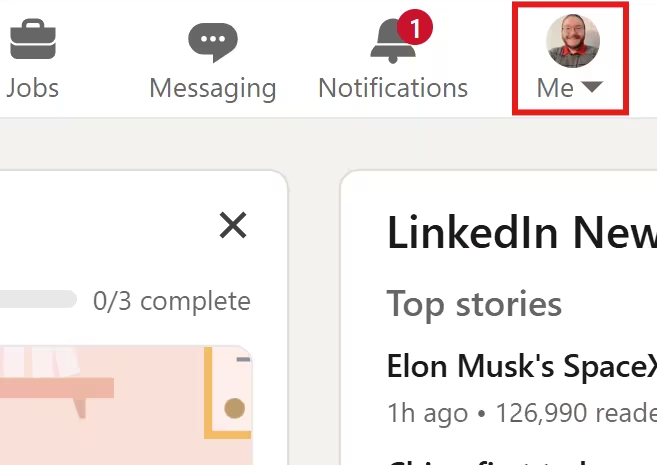
Click on the “Me” icon in the top bar and select “View profile.”
- Step 2:
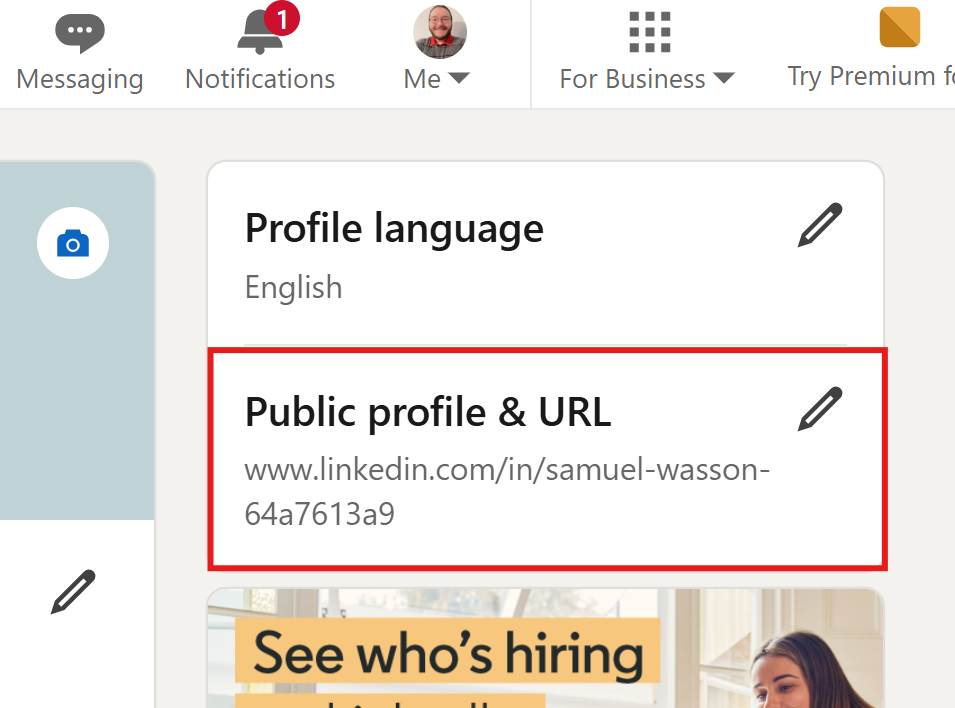
Click on the pencil icon to the right of “Public profile & URL” in the top right column.
- Step 3:
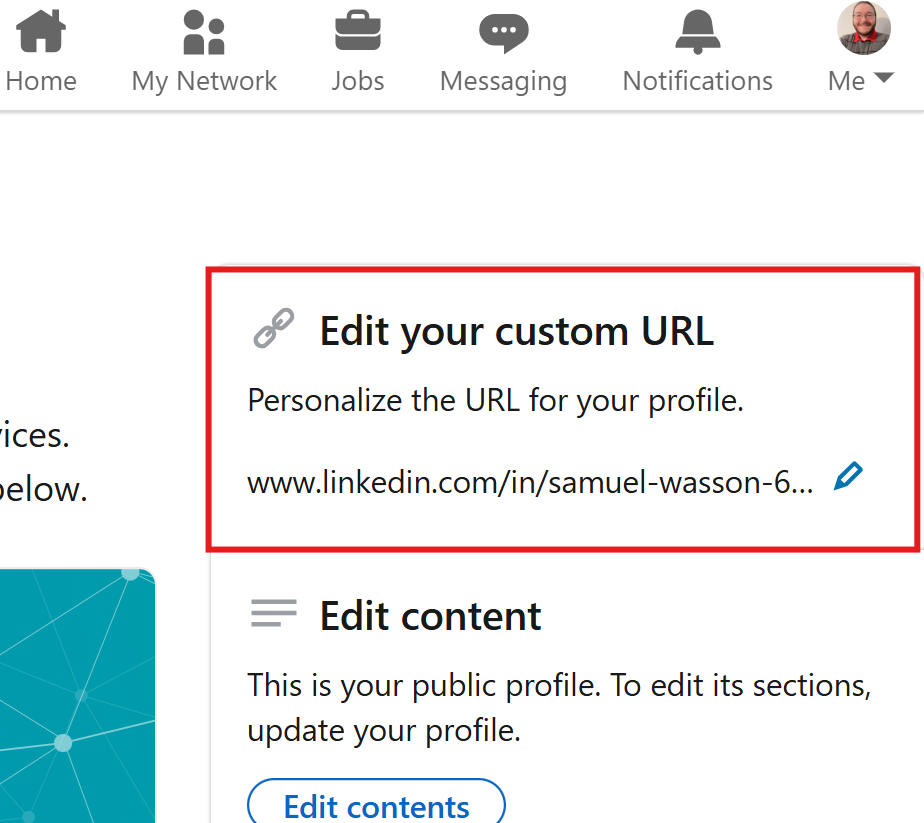
Click on the pencil icon under “Edit your custom URL” on the top right of the screen.
6 Steps to Customize Your LinkedIn on Mobile
Here’s how to edit your URL directly from the LinkedIn mobile app:
- Step 1:
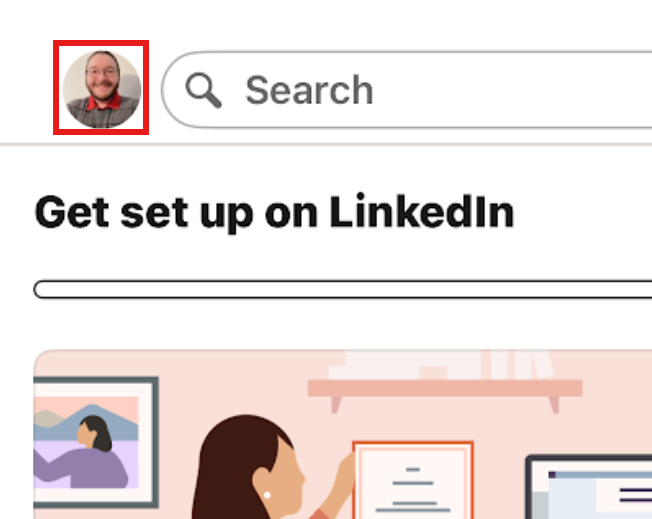
Tap your profile photo in the top bar.
- Step 2:
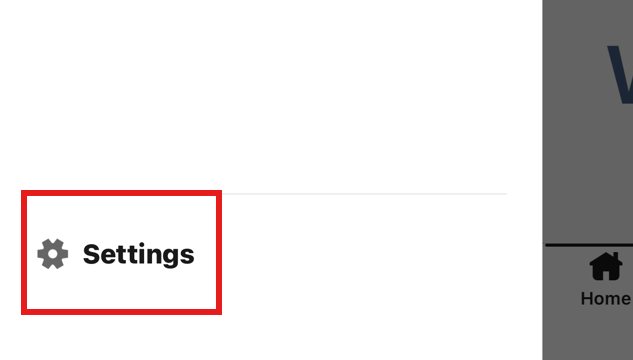
Tap the “Settings” button with the gear icon at the bottom of the sidebar.
- Step 3:
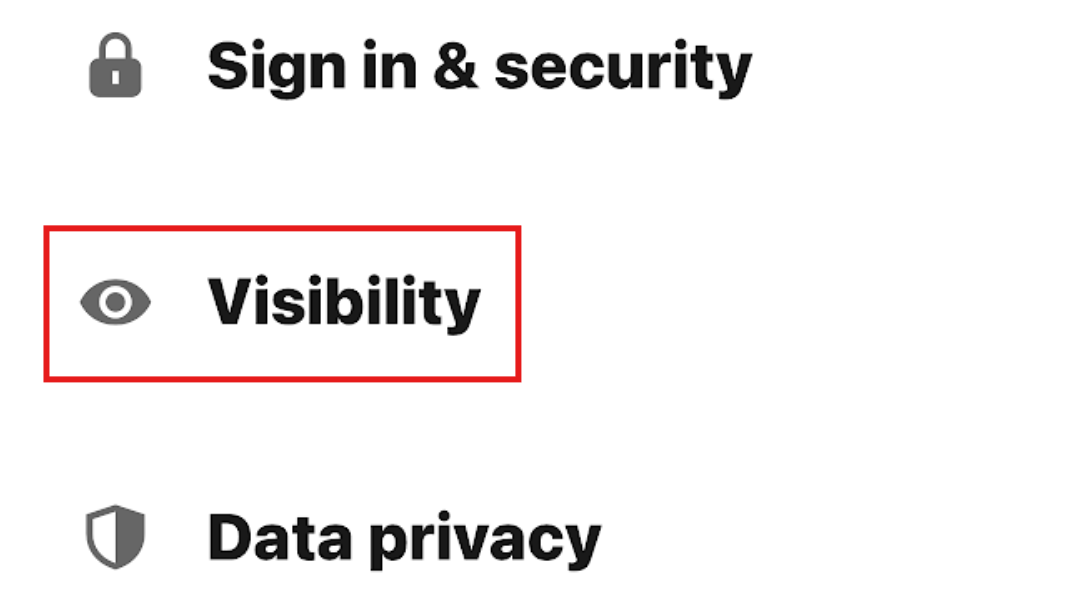
Tap the “Visibility” button with the eye icon.
- Step 4:
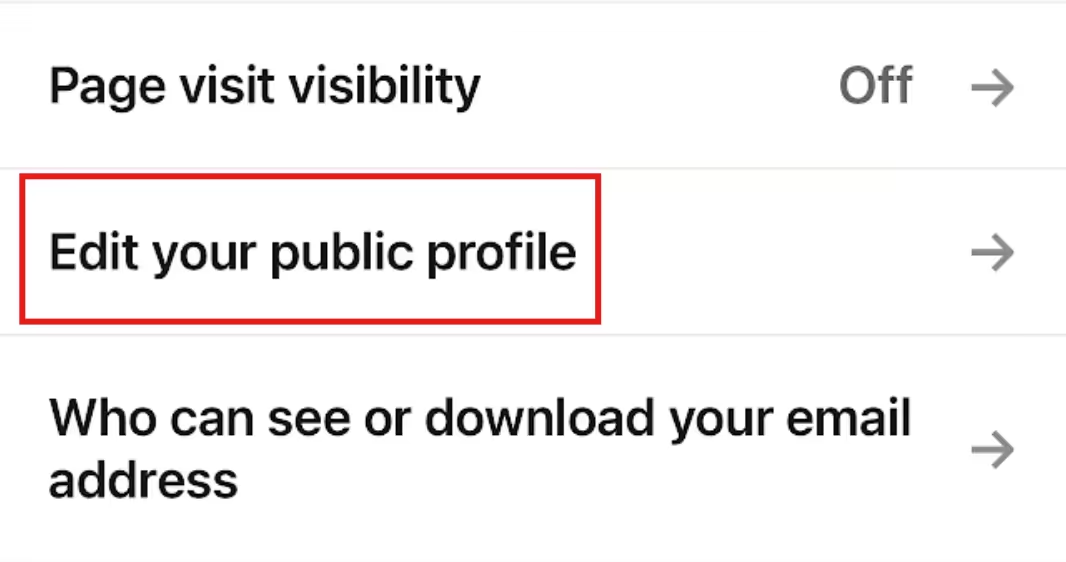
Tap “Edit your public profile.”
- Step 5:
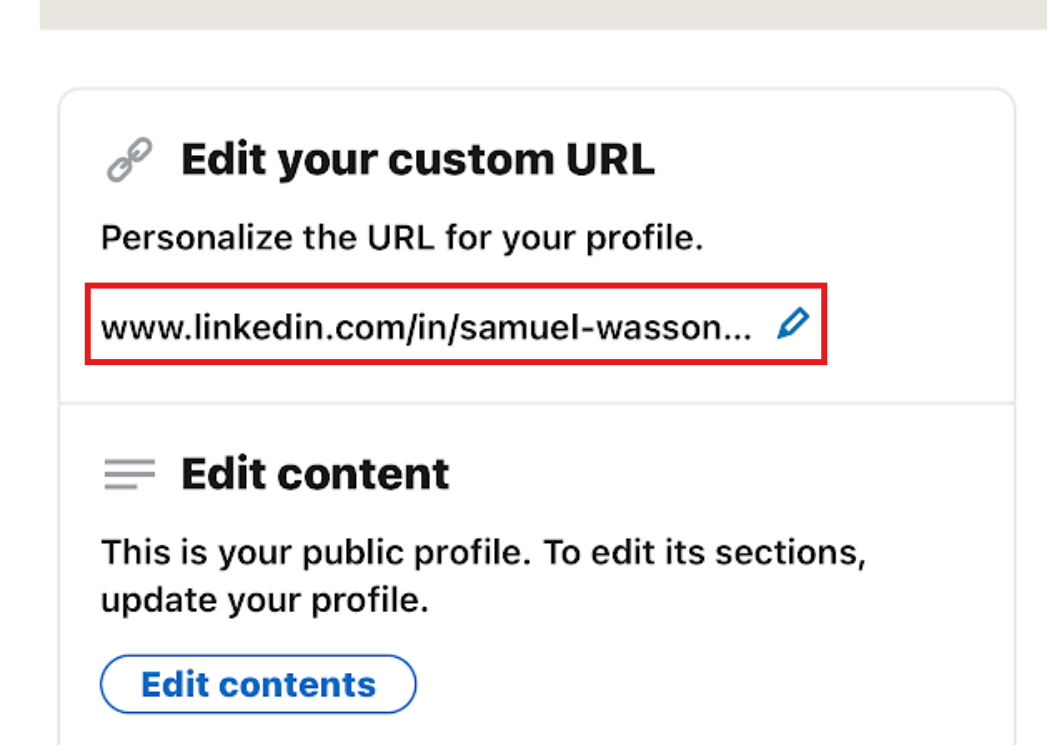
Tap the pencil under “Edit your custom URL.”
- Step 6:
You can edit the text after “www.linkedin.com/in/.” Edit your URL as desired, then select “Save.”
How to Put a LinkedIn URL on a Resume
When adding your LinkedIn to your resume, apply these tips for a clean, scannable application.
Follow Formatting Best Practices
Employers spend less than seven seconds reading your resume. Because of this, the most important things to consider when placing LinkedIn URLs on resumes are clarity and accuracy.
When adding your LinkedIn profile, follow these formatting rules:
- Be concise. Leave out “https://www” to save space and declutter (e.g., “linkedin.com/in/susan-lang”).
- Use a credential or job title. If your name is taken, add a professional credential or job title to differentiate yourself (e.g., “linkedin.com/in/alex-dawn-MD”).
- Apply industry branding. Consider adding professional branding and industry keywords to your URL (e.g., “linkedin.com/in/frank-west-ux-design”).
- Add a middle initial if needed. If you don’t have an official credential or title, you can also add your middle initial (e.g., “linkedin.com/in/jack-donald-green”).
- Keep formatting consistent. Your LinkedIn URL should visually match the rest of your contact information in font size and spacing.
Pro Tip
You don’t need to use all of these strategies. Choose the one or two that make sense for your situation. Prioritize clarity, and only add a credential, middle initial, or industry keyword if it helps distinguish your profile or reinforce your brand.
Place Your LinkedIn URL in Your Contact Header
When writing your resume, put your LinkedIn URL within your contact header. Position it after your phone number and email address to centralize your contact information.
Here’s an example of where to put LinkedIn on a resume:
111-111-111 | john.smith@email.com | linkedin.com/in/john-f-smith
Make Your URL Clickable for Online Submissions
A clickable URL is a nice convenience for employers and can help get their attention. Follow these steps to embed a functional LinkedIn link on your resume:
- Microsoft Word: Highlight the text, right-click, select “link,” and paste your URL.
- Google Docs: Highlight the text, click the link icon (resembles a chain link) in the toolbar, and paste the URL.
Pro Tip
Clickable links only matter for digital submissions. Remove hyperlink formatting for printed resumes. Most resume-building tools (including Pages, Canva, and PDFs exported from Word or Docs) allow clickable links. Always double-check that your URL works after exporting.
Should You Use a LinkedIn QR Code?
QR codes offer quick, scannable access to your LinkedIn profile and can be helpful in situations like:
In-person events: At career fairs or networking meetups, a QR code gives employers instant access to your profile without needing to type URLs.
Portfolio-heavy positions: Jobs in design, multimedia, or writing often require work samples. A QR code lets you share your portfolio directly from your resume.
Tech-savvy roles: For positions where tech fluency or innovation is valued (e.g., marketing, branding, web design), a QR code can subtly demonstrate these skills.
That said, QR codes aren’t always a good fit. Avoid them if:
Your profile doesn’t add value: If your profile or portfolio is out of date or incomplete, it shouldn’t be linked in a QR code.
You’re applying to jobs with strict ATS criteria: In ATS-heavy hiring processes, QR codes may be ignored or interfere with parsing, especially if they replace essential contact information.
Follow these rules for using QR codes:
- How to create a QR code with the mobile app: Open the LinkedIn mobile app, tap the “search bar,” and select the QR icon.
- How to create one on desktop: If you don’t use the LinkedIn mobile app, you can generate a QR code by copying your LinkedIn URL into a QR code generator (such as Adobe or Canva). Stick to static QR codes and avoid tools that require accounts, tracking, or expiration dates.
- Making it usable: Ensure the QR code has sufficient “quiet zone” (white space) around it so it remains scannable by all mobile devices.
Pro Tip
When using a QR code, test it on multiple devices. Additionally, if you have an old QR code, test it every time you send it out. LinkedIn-generated QR codes are static and won’t expire, but third-party generators may change or stop working over time.
Optimizing Your LinkedIn Profile: An Employer-Ready Checklist
Small errors or oversights show a lack of professionalism and poor attention to detail. You want your LinkedIn profile to be just as clean, concise, and optimized as your resume.
Follow this checklist to get your LinkedIn profile ready for employers:
u003cstrongu003eUse a professional photou003c/strongu003e. Include a high-resolution headshot with a neutral background for your profile picture.
u003cstrongu003eApply a value-driven headlineu003c/strongu003e. Use a statement that defines your impact instead of a standard title and description (e.g., instead of “Data technician who runs servers at TechTmrw,” say, “Data technician Improving network efficiency one server at a time.”)
u003cstrongu003eCreate a narrative in your “About” sectionu003c/strongu003e. This section is your opportunity to include the personal touches left out of your resume. Focus on your motivations, how you got to where you are, and why it matters.
u003cstrongu003eHighlight skills and endorsementsu003c/strongu003e. Pin your three core professional achievements to the top of your skills list, so they’re the first thing a recruiter sees.
u003cstrongu003eCreate social proofu003c/strongu003e. Try to obtain two to three recent recommendations to provide third-party validation of your expertise.
u003cstrongu003eFoster natural engagementu003c/strongu003e. Authentically and consistently engage in communities related to your field. This builds career connections and industry goodwill.
Amplify Your Resume With a LinkedIn Profile
Learning how to add LinkedIn to resumes is invaluable in the modern job market. An optimized LinkedIn URL that links to an up-to-date profile modernizes your application, transforming a static list of duties into a portal to your broader professional world.
To maximize your chances of landing an interview, you need a resume that grabs employers’ attention. Monster’s Resume Builder ensures your LinkedIn profile is not only included but also formatted to stand out to employers.
Frequently Asked Questions
How do I put my LinkedIn on my resume?
Put your LinkedIn URL in the contact section of your resume header, next to your phone number and email address, to keep your contact details centralized and easy to scan.
Use a clean, custom URL in lowercase (e.g., linkedin.com/in/jane-smith). Avoid embedding your URL in the body of your resume, where recruiters may overlook it during a quick initial scan.
How do I copy my LinkedIn URL?
To copy your LinkedIn URL, go to your profile page and copy the link directly from your browser’s address bar, or use the “Edit public profile & URL” section in your LinkedIn settings.
For resumes, remove the “https://www.” prefix to save space and reduce visual clutter. After pasting it into your resume, double-check that the link works before submitting your resume.
How do I export my LinkedIn profile to a resume?
To export your LinkedIn profile, click “More” on your profile and select “Save to PDF.” This file can help you draft a resume, but it shouldn’t be submitted as your final application.
Exported profiles often lack customization and formatting control, so you should include a direct link to your LinkedIn profile on digital resumes and use QR codes only when appropriate.
Should I add my resume to LinkedIn?
In most cases, you should avoid uploading your resume to LinkedIn. While doing so can increase visibility for recruiters using LinkedIn tools, it also poses privacy risks and can expose your job search activity to current employers.
Your uploaded resume may also go out of date quickly, so it’s safer to keep your profile optimized and share your resume through targeted applications.
Why is adding a LinkedIn URL to a resume important?
Adding your LinkedIn URL to your resume is important because it gives recruiters instant access to context your resume can’t convey on its own. It validates your work history, showcases your professional activity, and allows employers to review your recommendations, media, and portfolio links with examples of your work.
For digital applications, sharing your LinkedIn URL on your resume also reduces friction by enabling recruiters to learn more about you without requesting additional materials.

Megan Dawkins is a career industry editor who empowers job seekers to take control of their career paths using Monster’s comprehensive job search and resume tools. She specializes in helping job seekers navigate the flexible job market.
See More From Megan DawkinsExplore Related Career Advice

“Do You Have Any Questions for Me?” How to Answer in an Interview (30 Examples)

Updated:
Sep 18, 2026
|
14 min read



20 Companies That Pay 100% Health Insurance & Other Top Benefits
Updated:
Sep 10, 2026
|
14 min read


How Long of a Commute Is Too Long? 49% Have Turned Down a Job Due to the Commute

Updated:
Sep 8, 2026
|
11 min read


Beauty Bias at Work Statistics: 88% Say Attractive People Have an Advantage
Updated:
Aug 31, 2026
|
8 min read

Manage Your Career Like an Expert
Take control of your professional journey with Monster’s expert resources. Explore advice, research, and tips to make informed decisions and advance your career with confidence.

Job Search
Discover strategies to get noticed, network effectively, and streamline your job search process.

Resumes
Get practical tips to create a resume or CV that stands out to employers and wins interviews.

Cover Letters
Learn how to craft a compelling cover letter that highlights your experience and fit for the role.

Career Paths
Explore career paths, industry trends, and growth opportunities to plan your next move.

Interviewing
Prepare for interviews with tips on answering common questions and following up effectively.

Career Development
Develop key skills and knowledge to grow in your current role or pivot to new opportunities.

Leaving a Job
Navigate job changes and career transitions with practical advice and planning resources.