
How to Add a Resume to LinkedIn (3 Easy Methods)

Make it easier to apply to jobs, increase recruiter visibility, and choose the right level of resume privacy on LinkedIn.
Updated:
|

11 min read

Table of Contents


There are three main ways to add a resume to LinkedIn: Upload it directly to a job application through Easy Apply, save it privately in your account settings for faster applications, or display it publicly in your Featured section.
Each option serves a different purpose depending on how actively you’re job searching, how much visibility you want, and whether you’re prioritizing speed or privacy.
This guide explains how to add a resume to LinkedIn and breaks down all three methods step by step, including screenshots, file formatting advice, privacy considerations, and tips for keeping your LinkedIn profile and resume aligned.
Should You Add Your Resume to Your LinkedIn Profile?
Yes, adding your resume to LinkedIn can help you find jobs more quickly and increase visibility with recruiters, but the best option depends on your job search goals and privacy preferences.
- Easy Apply uploads: Best for tailoring resumes to specific job applications
- Private uploads in the application settings: Best for quickly applying to similar roles while keeping your resume off your public profile
- Public uploads in the Featured section: Best for active job seekers who want maximum visibility
Public resumes can help recruiters find you more easily, but they may also expose personal information and attract spam. Private uploads offer more control and privacy while still making applications faster.
 Pro Tip
You can also add a resume to LinkedIn from the mobile app. The steps are very similar on iPhone and Android, though menu names and button placement may look slightly different depending on the app version.
Method 1: Use LinkedIn’s Easy Apply Feature
Use LinkedIn’s Easy Apply feature when you want to quickly apply to jobs directly through LinkedIn while still tailoring your resume to specific roles.
Keep in mind that a regular “Apply” button usually sends you to the employer’s website instead of letting you apply within LinkedIn.
- Step 1:
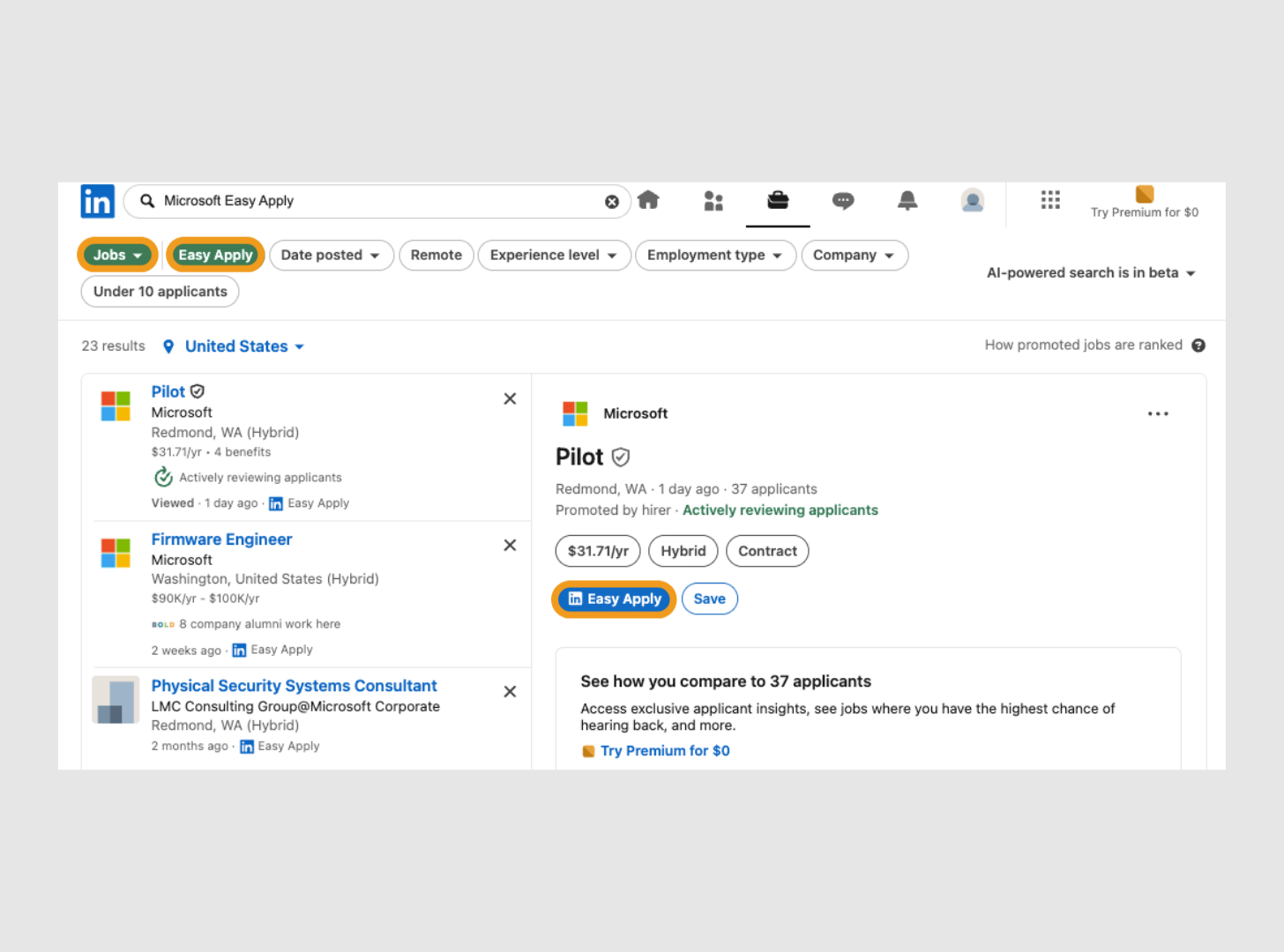
Search for Jobs With the “Easy Apply” Option
- Step 2:
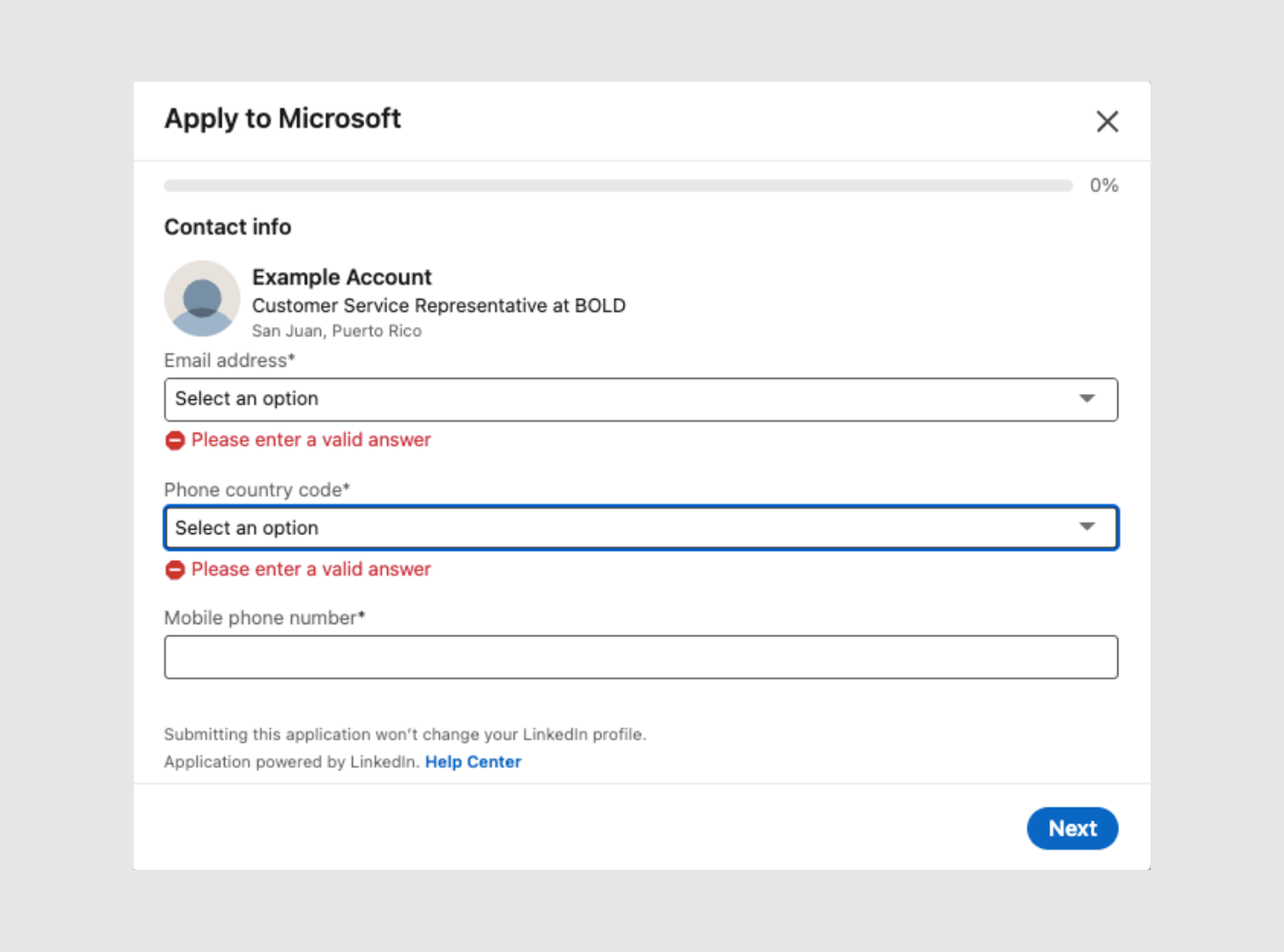
Fill In Your Contact Information
- Step 3:
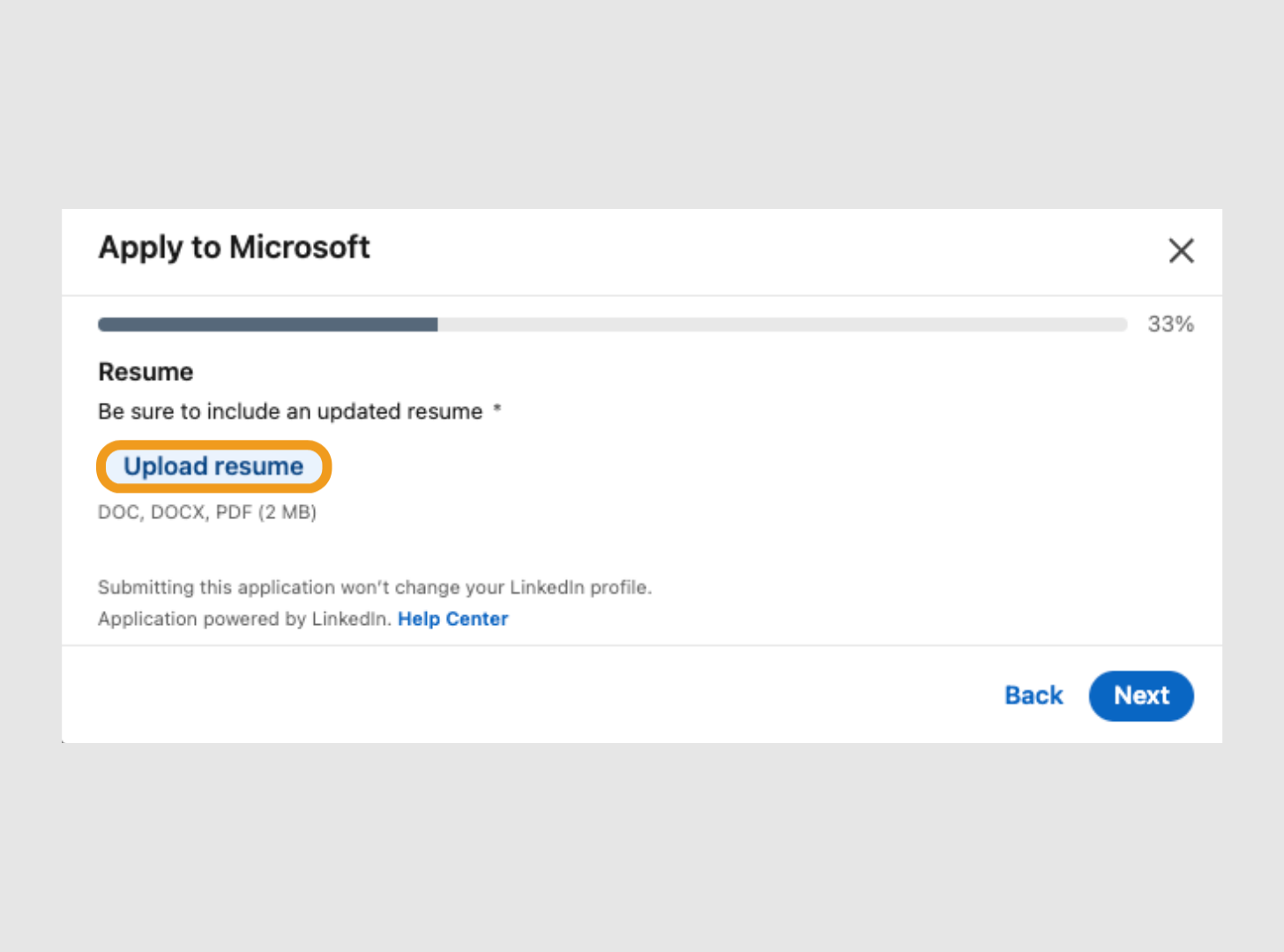
Select an Existing Resume or Upload a New One
- Step 4:
Fill Out Additional Questions (If Applicable)

Method 2: Upload & Save Resumes to Your Account
Upload and save resumes to your account if you’re applying to many similar jobs and want to speed up future applications.
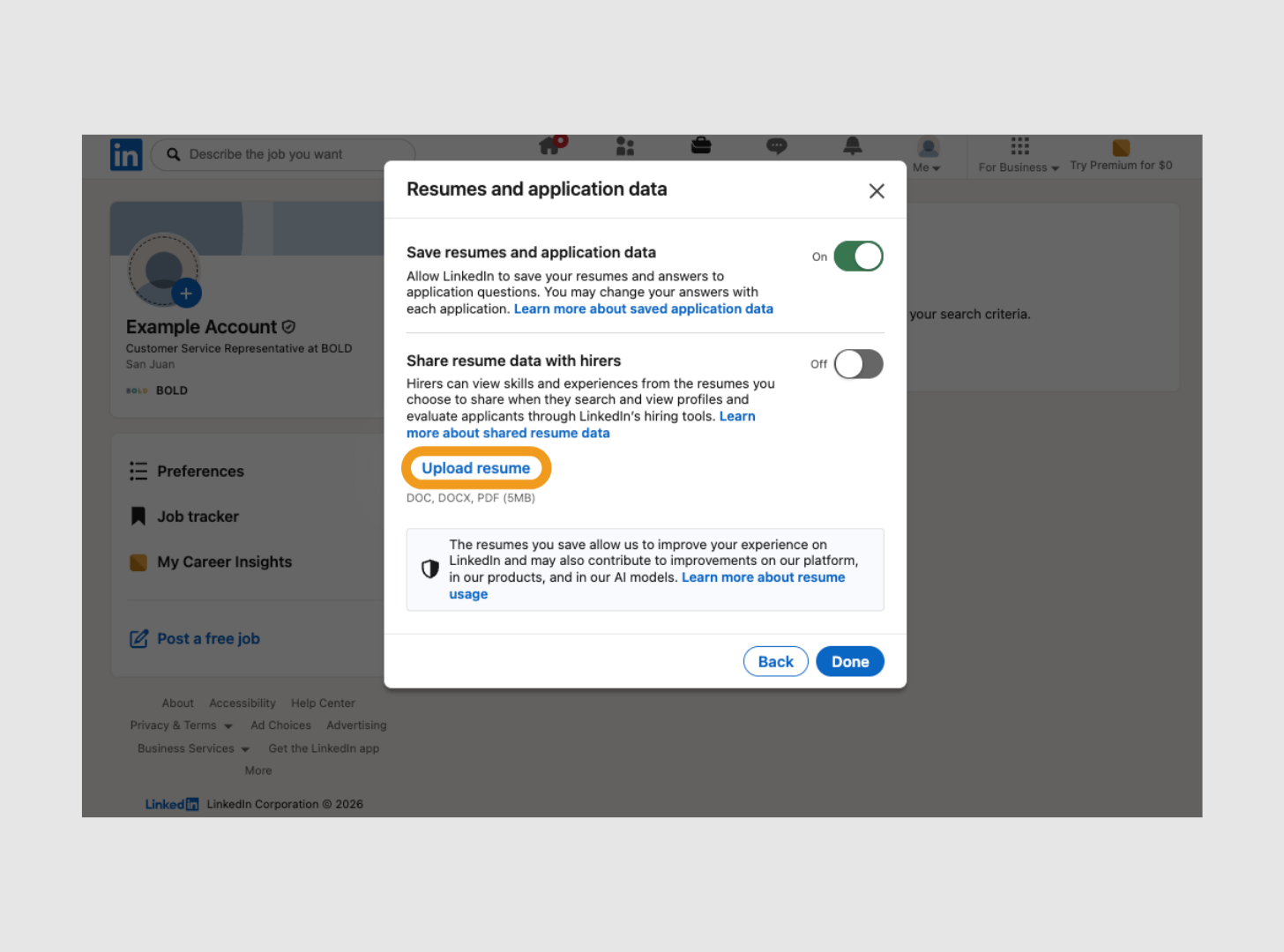
LinkedIn stores up to four recent resumes that you can reuse for Easy Apply applications, and it supports PDF and DOCX files up to 5MB. You can also manage saved resumes through the three-dot (…) menu to download or delete files later.
- Step 1:
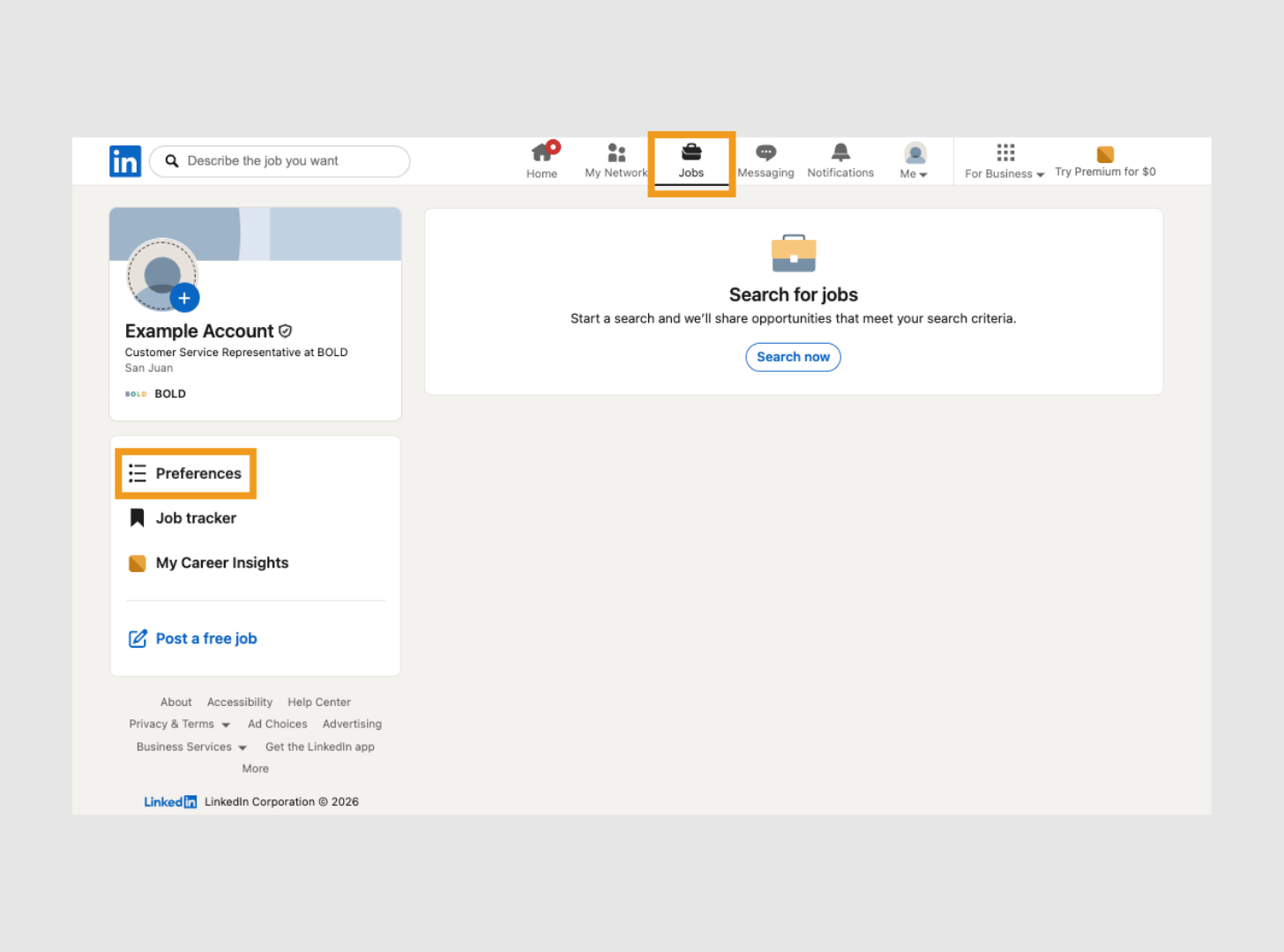
Go to “Jobs” & Select “Preferences”
- Step 2:
Select “Resumes & Application Data”

- Step 3:
Upload Your Resume
Method 3: Add Your Resume to the Featured Section (Public)
Add your resume to the Featured section on your LinkedIn profile if you’re actively job searching and want recruiters or profile visitors to easily view your resume. This makes your resume visible directly on your LinkedIn profile.
Before uploading, remove any personal information you don’t want publicly visible, since Featured documents can be downloaded directly from your profile.
- Step 1:
Go to “Me” to View Your Profile, Then Select “Add Section”

- Step 2:
Scroll to “Recommended” & Select “Add Featured”

- Step 3:
Click the “+” in the Right Corner, Then Select “Add a Document”

- Step 4:
Add a Title & Optional Description
![An "Add media" pop-up window on LinkedIn. An orange box highlights the required "Title" text input field, which contains the placeholder text "[First Name] [Last Name] Resume 2026".](https://www.monster.com/assets/wp-content/uploads/2026/05/linkedin-resume-method-3-add-title-and-description.png)
How to Prepare Your Resume Before Uploading It to LinkedIn
Before adding a new resume to LinkedIn, make sure the file is complete, professional, and easy for recruiters and applicant tracking systems (ATS) to read.
- 1.
Use a PDF whenever possible. PDFs preserve formatting across devices and are generally preferred by recruiters. LinkedIn also accepts DOCX files.
- 2.
Keep the file size under 5MB. Large files may fail to upload or display properly.
- 3.
Use a professional file name. Choose a simple, polished name like “Jane-Smith-Resume.pdf” instead of vague or cluttered names like “Resume_final_v3.docx.”
- 4.
Remove sensitive personal information. If your resume will be publicly visible in your Featured section, consider removing your home address or full phone number.
- 5.
Avoid overly designed resume templates. Heavy graphics, columns, icons, and text boxes may not render correctly or parse well in ATS software.
- 6.
Keep formatting ATS-friendly. Use standard fonts, clear section headings, and a simple layout to improve readability for both recruiters and application systems.
How to Update or Remove a Resume on LinkedIn
You can update your resume or remove it from LinkedIn at any time, depending on where the file is stored.
- Update or remove a resume in your Featured section. Open the Featured section on your profile, select the resume, and either replace the file or delete and reupload it.
- Update or remove a stored resume for Easy Apply. Go to the Job Application Settings page or the “Resumes and application data” section under Jobs preferences. To remove a resume, click the ellipsis (…) next to the file and select “Delete.” To update it, upload a newer version of your resume.
Previously submitted applications won’t be affected. Employers can still access the resume version attached when you originally applied.
How to Add a LinkedIn URL to Your Resume
Adding your LinkedIn profile URL to your resume can make it easier for recruiters to learn more about your background, experience, and professional presence. Many employers review both during the hiring process, so it’s important that your resume and LinkedIn profile support and reinforce each other.
- Customize your LinkedIn URL first. Go to Settings, select “Edit public profile,” then choose “Edit URL.” A custom URL that includes your name looks more professional than one with random numbers or letters.
- Place the URL near your contact information. Add it in the header of your resume alongside your email address and phone number so recruiters can find it easily.
- Hyperlink the URL for digital resumes. If you’re submitting your resume online, make the link clickable for easier access. For printed resumes, write out the full customized URL clearly.
Should Your LinkedIn Profile & Resume Match?
Yes, your LinkedIn profile and resume should match on the core facts, including work history with job titles, employment dates, companies, and major accomplishments. Recruiters often compare both during the hiring process, so inconsistencies can raise concerns or cause confusion.
That said, they shouldn’t be identical documents.
- Your resume should be more concise, tailored, and formal. It’s designed to target a specific role and quickly highlight your most relevant qualifications.
- Your LinkedIn profile can be more conversational and detailed. It’s meant to showcase your broader professional story, personality, skills, professional achievements, recommendations, and career progression.
It’s also important not to rely on LinkedIn’s PDF export as your resume. While it may work as a quick reference document, it usually lacks the customization, formatting control, and targeting needed for strong job applications.
Is Your Resume Ready for LinkedIn?
Knowing how to add a resume to LinkedIn can help you apply to jobs faster, improve your visibility with recruiters, and keep your professional materials organized across platforms.
Whether you choose to upload a resume privately for Easy Apply applications or publicly through your Featured section, make sure your resume is polished, accurate, and aligned with your LinkedIn profile.
Before adding a resume to your LinkedIn profile, do a quick final resume check:

Save your resume as a PDF.
Use a professional file name.
Remove personal information you don’t want publicly visible.
Double-check that job titles, dates, and accomplishments are consistent across both your resume and LinkedIn profile.
Tailor your resume to the types of jobs you’re targeting.
If your resume still needs work before you upload it to LinkedIn, Monster’s Resume Builder can help you create or refine an ATS-friendly resume with professional templates and AI-powered content support.
Frequently Asked Questions
Should you upload your resume to LinkedIn?
Yes. Uploading your resume to LinkedIn can make applying to jobs faster and increase visibility with recruiters. But publicly uploading a resume through your Featured section may expose personal information and attract spam. Private uploads through Easy Apply settings offer more privacy and control.
Can recruiters see my resume on LinkedIn?
Recruiters can only see your resume if you upload it publicly to your Featured section or submit it through a job application. Resumes saved privately in your Easy Apply settings are not visible on your public profile.
Should I upload my resume as a PDF or a Word file?
You should usually upload your resume as a PDF because it preserves formatting across devices and platforms. LinkedIn also accepts Word documents (DOCX), but PDFs are generally more consistent and professional-looking.
Can I upload multiple resumes to LinkedIn?
Yes, LinkedIn allows you to store multiple resumes for Easy Apply applications. This can be helpful if you apply to different types of roles and want tailored resumes for each.
How do I remove a resume from LinkedIn?
To remove a stored resume, go to the Job Application Settings page or the “Resumes and application data” section under Jobs preferences. Click the ellipsis (…) next to the resume and select “Delete.”
Can I add my resume to LinkedIn from my phone?
Yes, you can upload your resume to LinkedIn from the mobile app. The process is similar to desktop and can be done through Easy Apply, application settings, or your Featured section.
Will my LinkedIn connections be notified when I upload my resume?
No, LinkedIn typically does not notify your connections when you upload a resume. If you add a resume to your Featured section and share profile updates publicly, however, people may still notice profile changes.
Does uploading my resume replace my LinkedIn profile?
No, uploading your resume does not replace your LinkedIn profile. Your resume and LinkedIn profile serve different purposes and should work together to support your job search.

Kirsten Chorpenning is a career advice writer who empowers job seekers to take control of their career paths using Monster’s comprehensive job search and resume tools. She specializes in helping job seekers find rewarding jobs in today’s dynamic work environment.
See More From Kirsten ChorpenningExplore Related Career Advice
Nearly 3 in 10 LinkedIn Users Have Updated a Past Job After Leaving It

Updated:
Oct 7, 2026
|
7 min read

Employee Loyalty Statistics: 90% Say Companies Expect More Than They Give
Updated:
Oct 5, 2026
|
7 min read


Overqualified Hiring Stats: 57% Would Cut Resume Experience to Get Hired
Updated:
Sep 28, 2026
|
9 min read

20 First Job Interview Questions & Sample Answers: Tips to Land Your First Job
Updated:
Sep 24, 2026
|
20 min read

“Do You Have Any Questions for Me?” How to Answer in an Interview (30 Examples)
Updated:
Sep 18, 2026
|
14 min read



20 Companies That Pay 100% Health Insurance & Other Top Benefits
Updated:
Sep 10, 2026
|
14 min read
Manage Your Career Like an Expert
Take control of your professional journey with Monster’s expert resources. Explore advice, research, and tips to make informed decisions and advance your career with confidence.

Job Search
Discover strategies to get noticed, network effectively, and streamline your job search process.

Resumes
Get practical tips to create a resume or CV that stands out to employers and wins interviews.

Cover Letters
Learn how to craft a compelling cover letter that highlights your experience and fit for the role.

Career Paths
Explore career paths, industry trends, and growth opportunities to plan your next move.

Interviewing
Prepare for interviews with tips on answering common questions and following up effectively.

Career Development
Develop key skills and knowledge to grow in your current role or pivot to new opportunities.

Leaving a Job
Navigate job changes and career transitions with practical advice and planning resources.