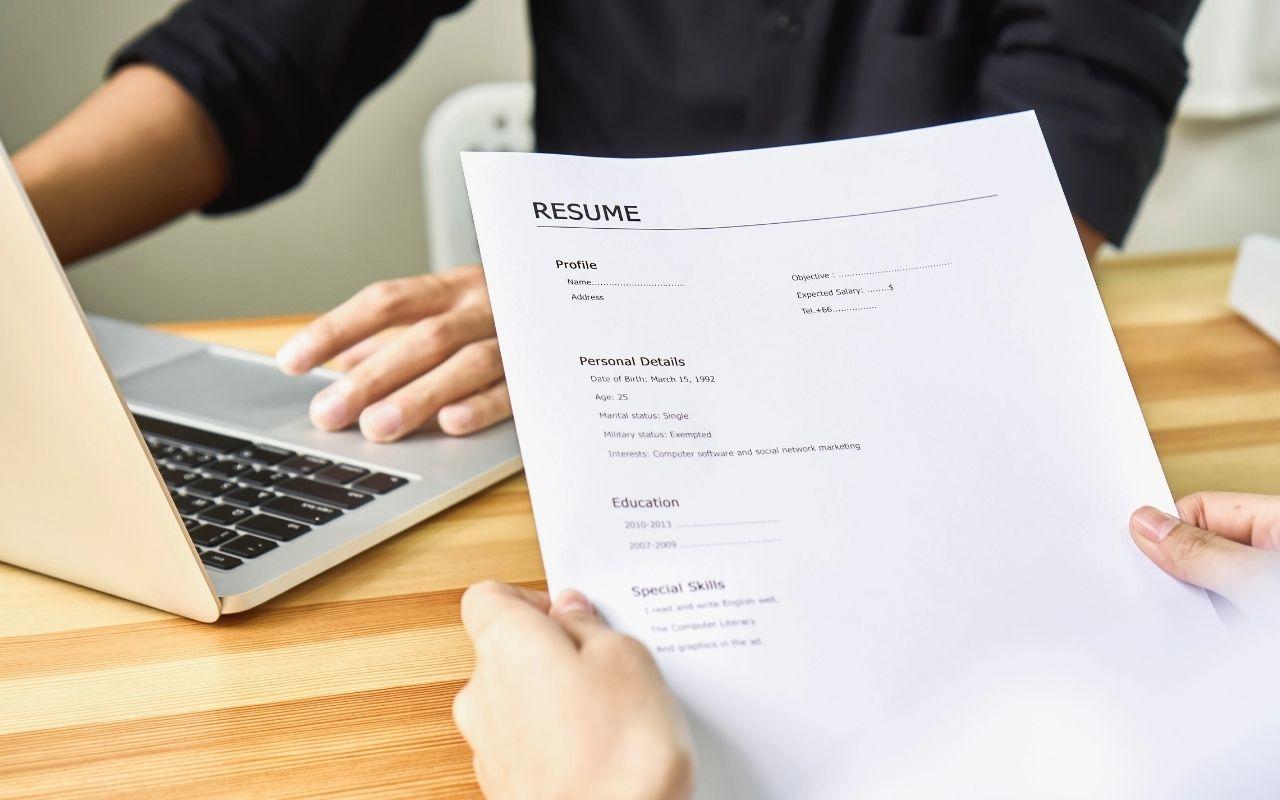
Free Google Docs Resume Templates
Create an ATS-friendly resume with Google Docs resume templates from Monster’s Resume Builder. Edit your resume in Google Drive, customize a design, and follow expert formatting tips.
Explore Professional Google Docs Resume Templates
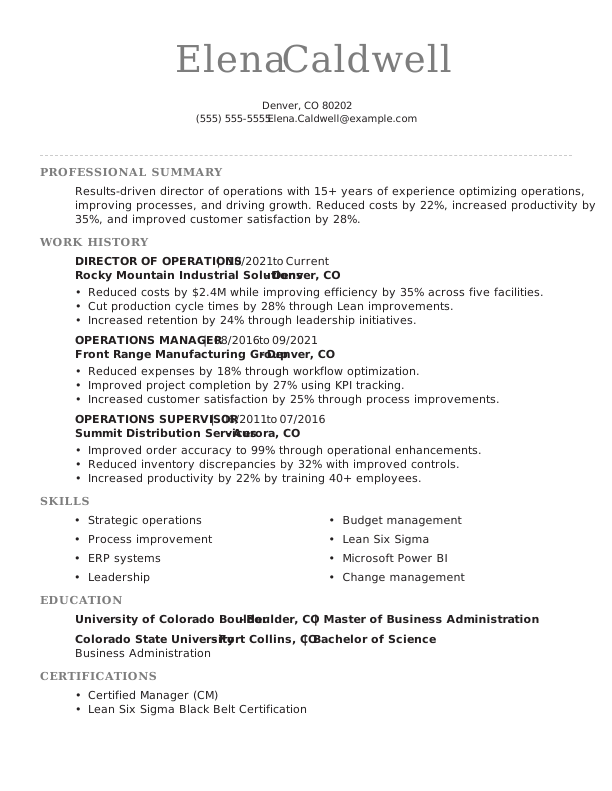
Director Of Operations Resume Example Monster
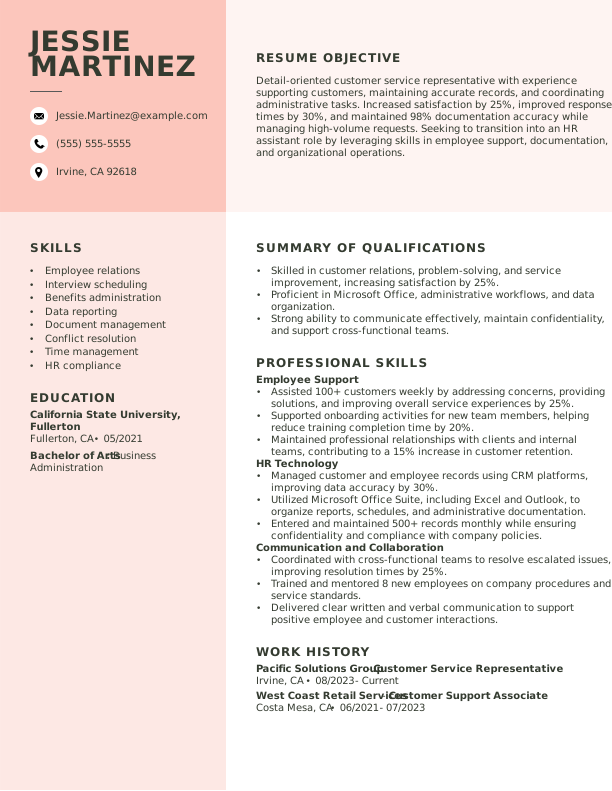
Customer Service Representative Resume Example Career Changer Monster
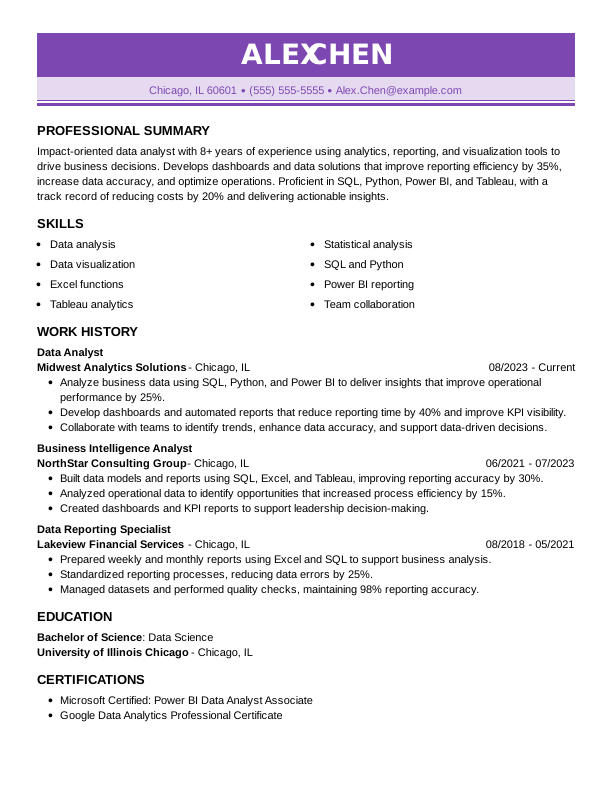
Data Analyst Resume Example Combination Monster
 Free
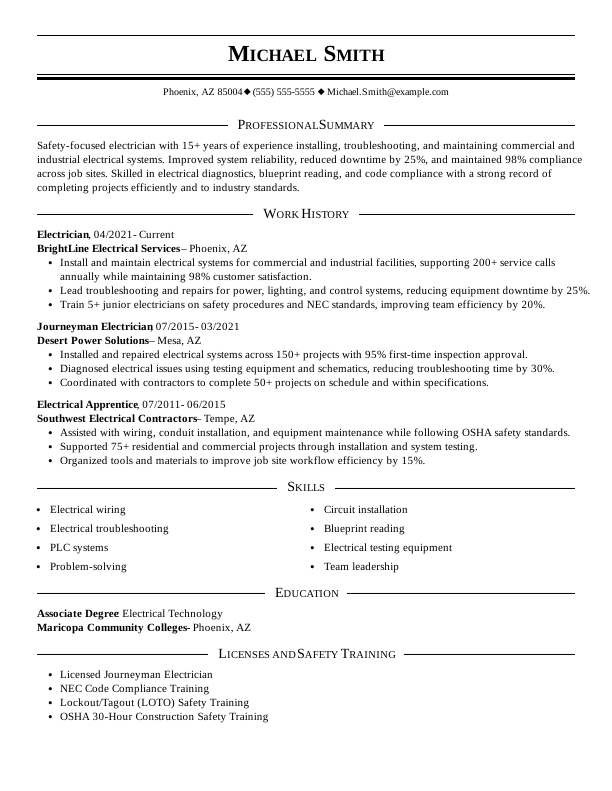
Electrician Resume Example Traditional Monster
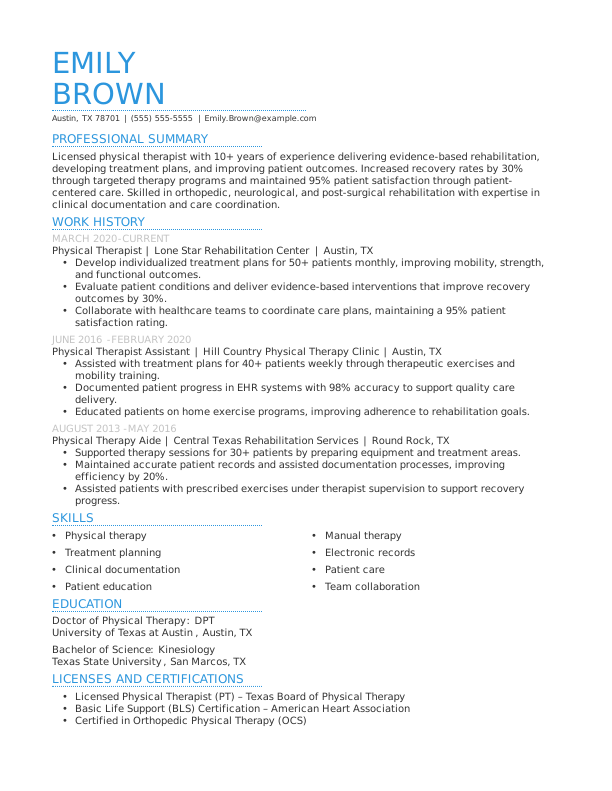
Physical Therapist Resume Example Simple Monster
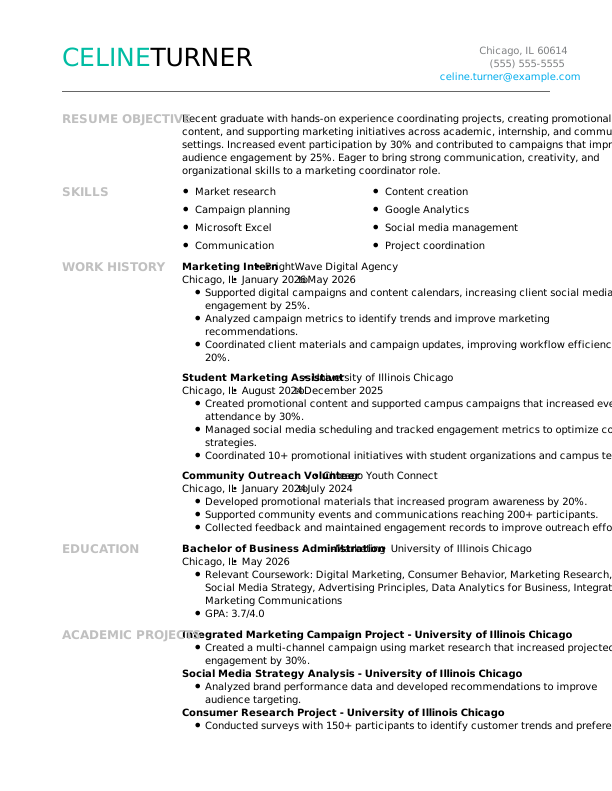
Recent Graduate Resume Example Modern Monster
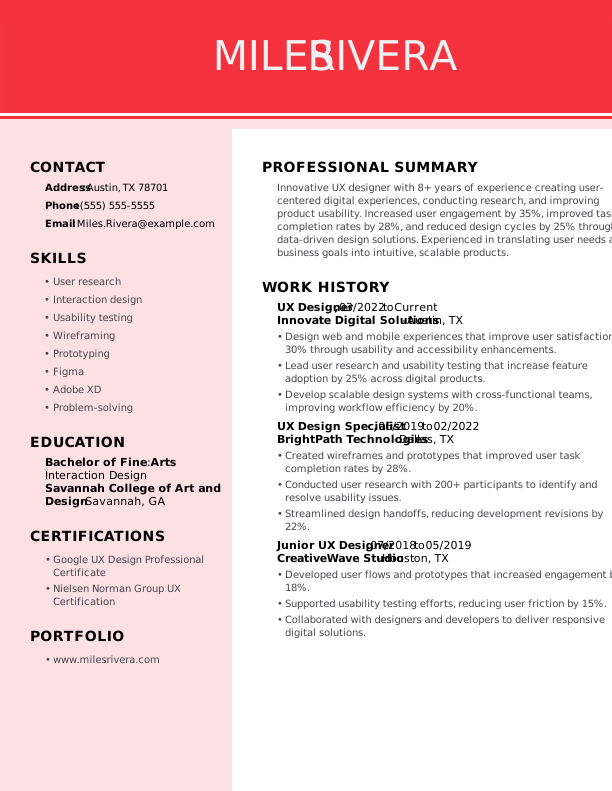
UX Designer Resume Example Creative Monster
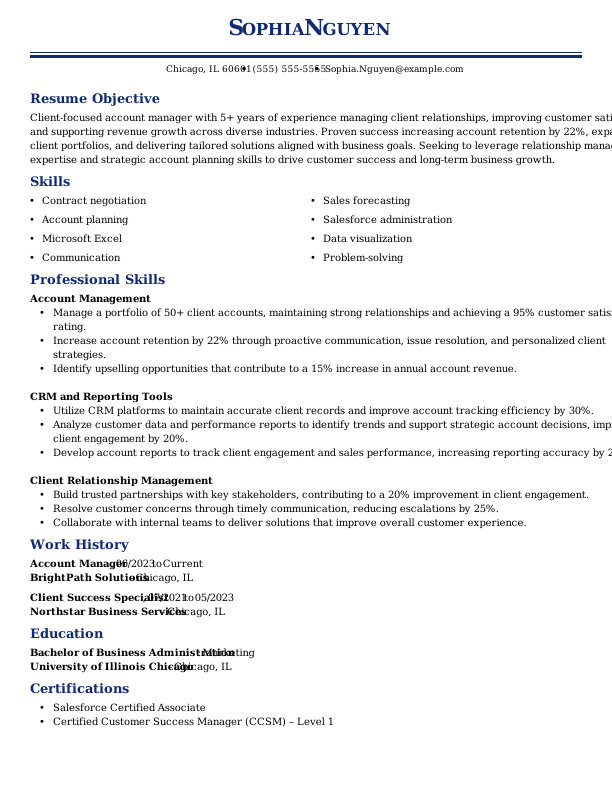
Account Manager Resume Example ATS-Friendly Monster
Browse More Free Google Docs Resume Templates
Popular Searches
- Accounts Payable
- Artist
- Baker
- Business
- Classic & Traditional
- College Student
- Construction Worker
- Creative & Unique
- Customer Service
- Direct Support Professional
- Flight Attendant
- Front Desk Receptionist
- High School
- Hvac Technician
- Inventory Manager
- Maintenance
- Modern
- Pet Sitter
- Production
- Sales
- Restaurant Server
- Social Work
- Technology
How to Format a Resume in Google Docs
To format a resume in Google Docs, use an ATS-friendly template, organize your information with standard resume sections, maintain consistent formatting, and download your resume in PDF or DOCX format. With Monster’s Resume Builder, you can customize your content and layout while keeping your resume professionally formatted.

Open a Resume Template in Google Docs
To create a resume from scratch, you can use Google Docs’ built-in templates or start with a blank document. If you prefer additional template options, Monster’s Resume Builder also includes professionally designed resume templates you can download as DOCX files, upload to Google Drive, and edit in Google Docs.
How to use Monster resume templates in Google Docs:
- Download a Monster resume template in DOCX file format.
- Upload the file to Google Drive.
- Open the file with Google Docs.
- Replace the sample content with your own information while preserving the existing formatting.
How to create a resume directly in Google Docs:
- Open Google Docs, select Template Gallery, and choose a resume template.
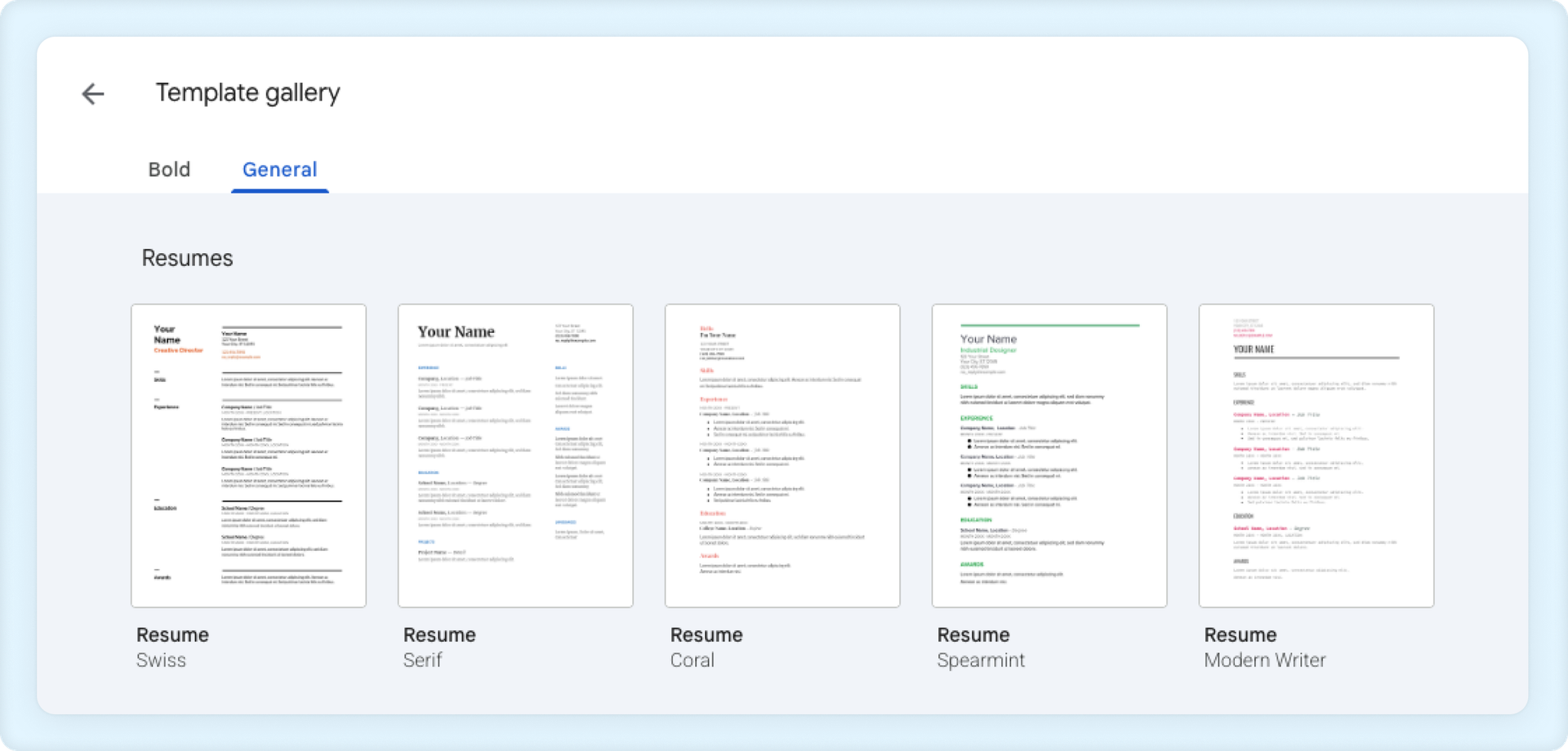

Choose From a Variety of Clean Google Docs Resume Templates
Choose a resume template with a standard, professional, ATS-optimized layout, following these best practices:

Choose resume templates that:
Use a clean, professional layout with clear section headings
Include readable fonts and consistent formatting
Leave sufficient white space to improve readability
Emphasize your qualifications instead of visual design
Are easy to edit and download as a DOCX or PDF

Avoid resume templates that:
Use multiple columns, tables, or excessive text boxes
Depend on graphics, icons, or photos to communicate key information
Use decorative fonts or overly complex design elements
Put visual style ahead of organization and readability
Prevent ATS software from accurately parsing your resume

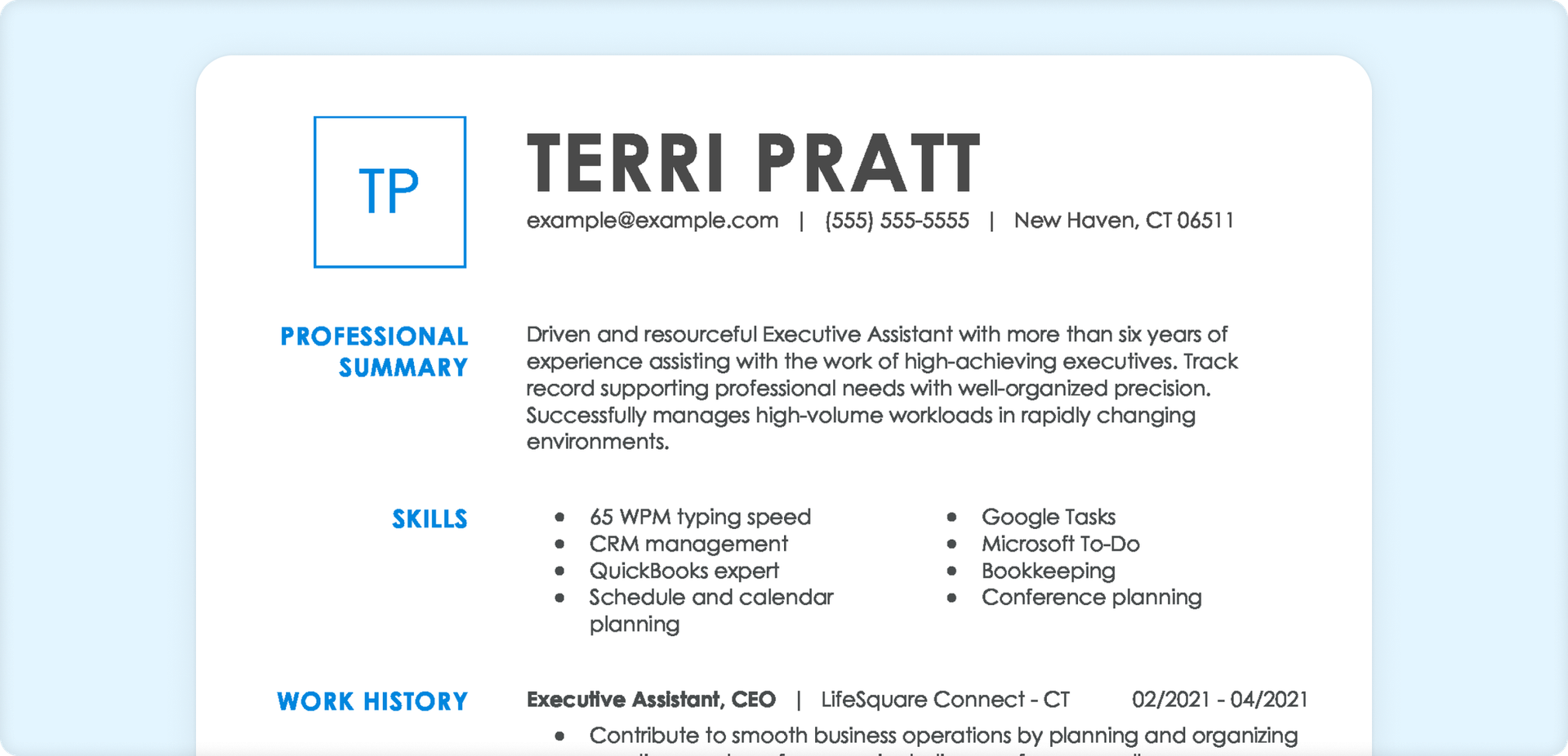
Use Standard Resume Headings
Professional Google Docs resume templates, including those from Monster, typically come with standard resume headings in place. If you’re starting with a blank document, remember to use standard section titles, such as:
- Contact Information
- Summary/Objective
- Work Experience
- Skills
- Education
- Optional sections, such as Certifications, Languages, Awards, etc.

Keep Formatting Clean & Consistent
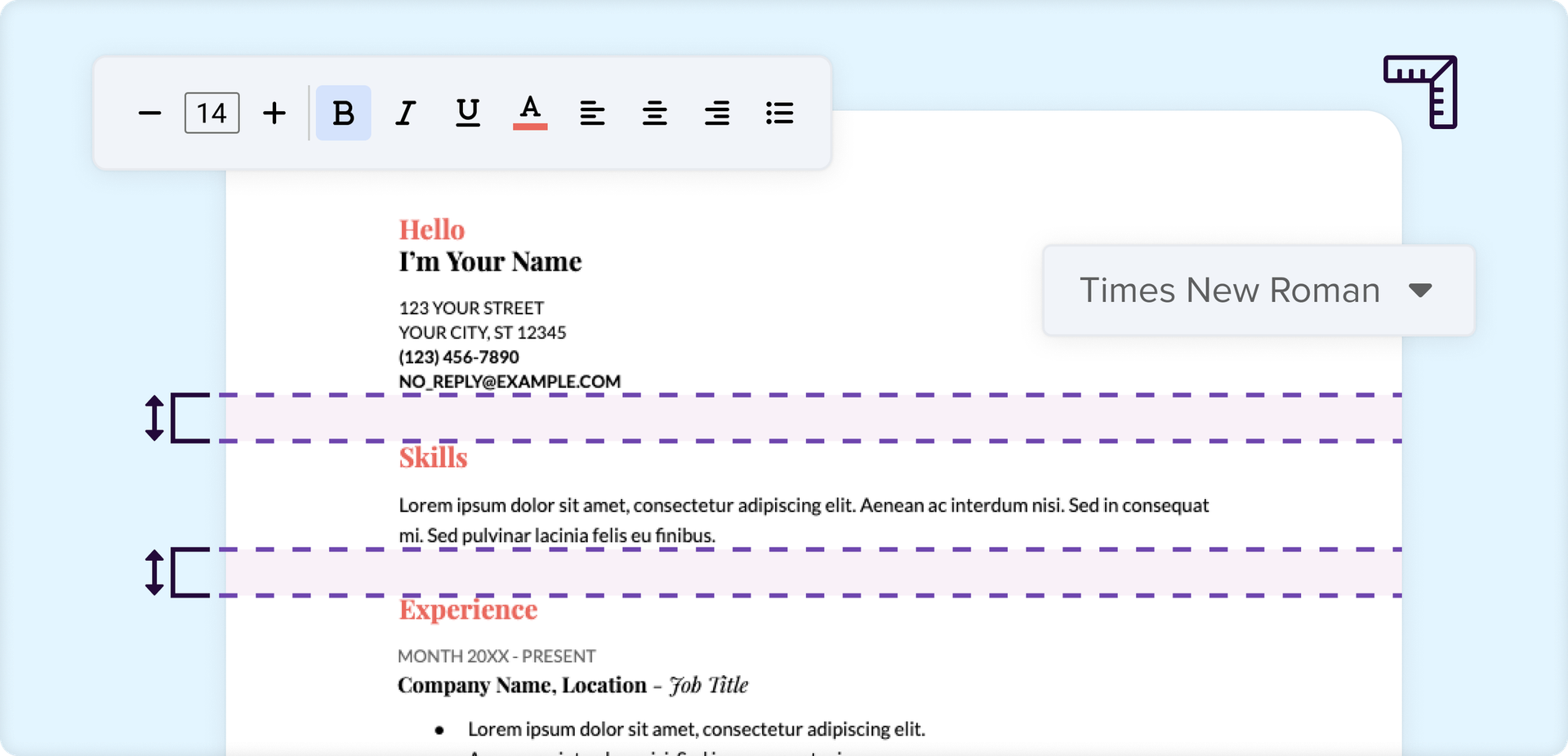
As you update your resume in Google Docs, it’s easy for fonts, spacing, alignment, and bullet styles to change unintentionally. Small changes to spacing, alignment, or bullet styles can quickly affect the overall appearance of your resume.
Monster’s resume templates let you customize both your content and layout while the Resume Builder keeps your formatting clean, consistent, and professional.
If you’re formatting your resume manually in Google Docs, be sure to:
- Choose a professional font such as Calibri, Arial, Georgia, or Times New Roman.
- Use a 10–12-point font for body text and a 14–16-point font for section headings.
- Keep spacing, margins, bullet styles, and date formatting uniform.
- Avoid decorative fonts, graphics, tables, and text boxes that can impact ATS parsing.

Customize Your Resume for Each Job
Replace all placeholder text with your own experience, accomplishments, and skills. Before submitting an application, tailor your resume by naturally incorporating keywords from the job description throughout your professional summary, work experience, and skills sections.

Save Your Resume
Proofread your resume carefully before applying.
Save your file using a professional name, such as FirstName_LastName_Resume (for example, Victoria_Jones_Resume).
We generally recommend downloading a PDF version to help preserve your formatting. If an employer specifically requests a Microsoft Word document, download your resume in a DOCX file format instead.
In Google Docs:
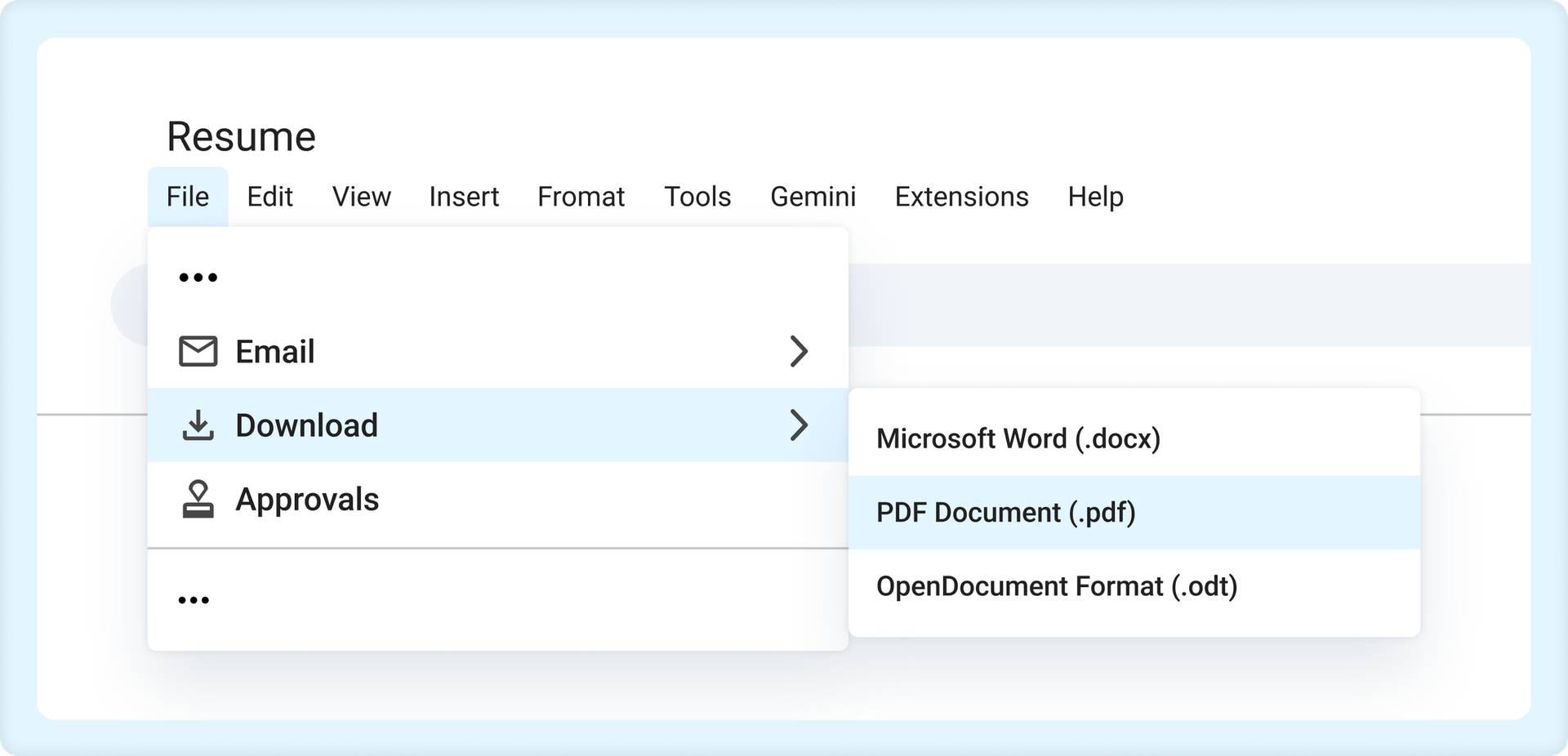
- Download a PDF by selecting File > Download > PDF Document (.pdf).
- Download a Word document by selecting File > Download > Microsoft Word (.docx).
Start Building Your Job-Winning Resume
Use Your Existing Resume
Import your current resume to transfer your information to one of our professional templates.
Create a New Resume
Start fresh with a template that catches your eye and follow the prompts to add your details.
Frequently Asked Questions
Last Update:
Should I use Google Docs or a resume builder?
Whether you choose Google Docs or a resume builder depends on your needs. Google Docs gives you full control over formatting and makes it easy to edit, save, and share your resume for free. Resume builders may offer better options if you want guided content suggestions, automatic formatting, and help creating your resume more quickly.
What’s the best Google Docs resume template?
The best Google Docs resume template is one that’s easy to read and clearly highlights your qualifications. Simple, professional layouts with standard resume sections and minimal design elements work well for most industries and are generally the most ATS-friendly.
How do I use Monster resume templates in Google Docs?
To use Monster resume templates in Google Docs, download the template as a DOCX file, upload it to Google Drive, and open it with Google Docs. Once opened, replace the sample content with your own information, adjust the formatting as needed, and tailor your resume to the job you’re applying for. When finished, download your resume as a PDF or Word document before submitting your application.
Should I submit my resume as a Google Docs link, Word document, or PDF?
Most employers prefer resumes in PDF or DOCX file format rather than a Google Docs sharing link. Follow the employer’s instructions whenever possible. If no file type is specified, a PDF is typically the safest choice because it preserves your formatting.
Where can I find free Google Docs resume templates?
You can find free Google Docs resume templates in Google’s Template Gallery or from Monster, where professionally designed templates can be copied to Google Drive and edited in Google Docs. Look for templates with clean layouts, standard resume sections, and ATS-friendly formatting to create a professional resume that’s easy to customize.
Explore Related Career Advice


How to Put Transferable Skills on Your Resume: 120 Skills, Examples, & Tips

Updated:
Aug 27, 2026
|
16 min read


How to Write a Functional Resume (Formatting Tips, Template, & Examples)
Updated:
Aug 7, 2026
|
17 min read

Functional vs Chronological Resume: Which Format Is Right for You?
Updated:
Aug 3, 2026
|
16 min read
100+ Resume Adjectives to Help You Write a Stronger Resume in 2026 (With Examples)
Updated:
Jul 30, 2026
|
12 min read